
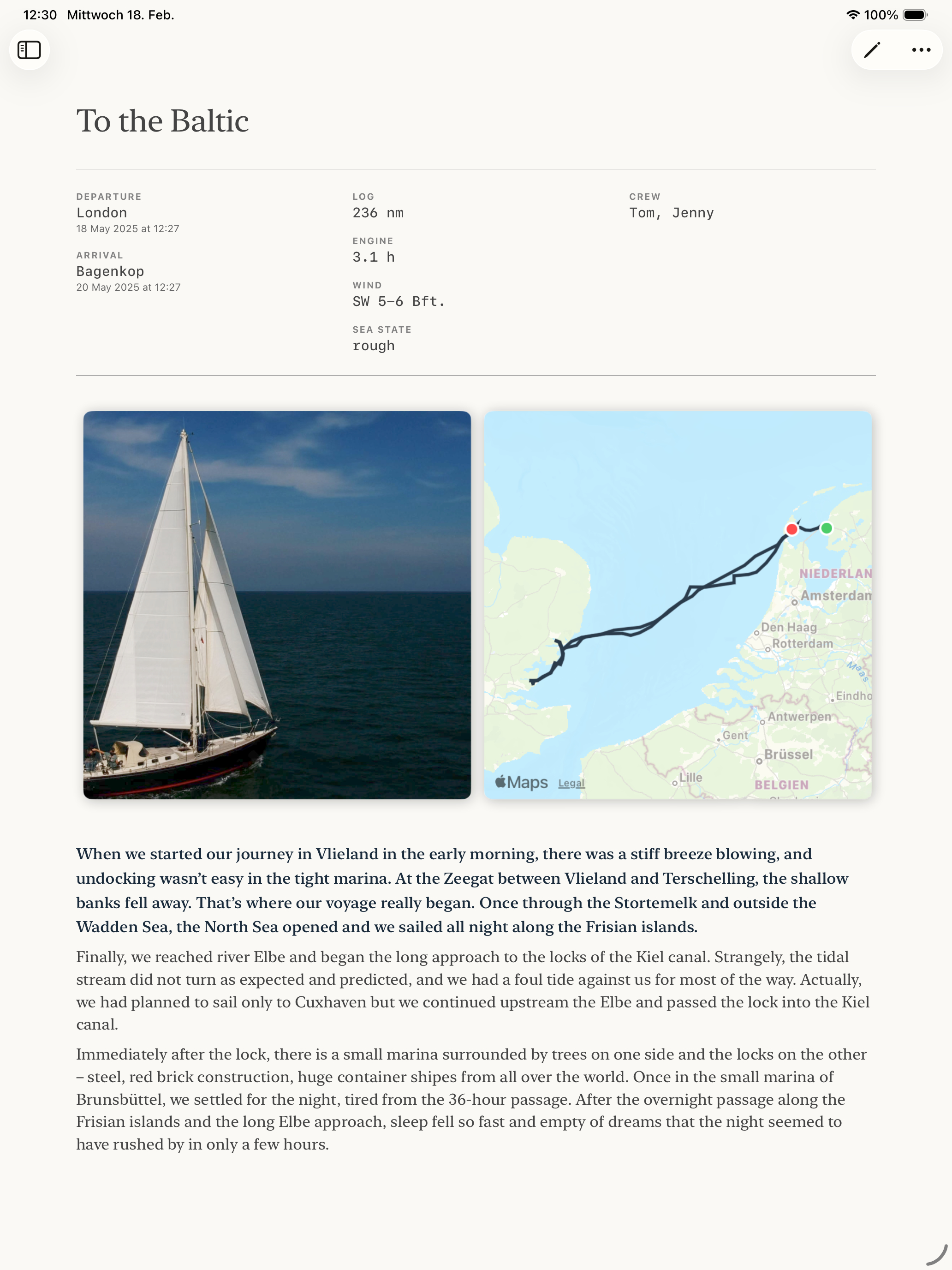
One of the most powerful features in SailorsLog is GPX track visualization. Import your actual sailing route from your chartplotter, and SailorsLog will render it on an interactive map alongside your logbook entry, complete with departure/arrival markers and photo locations.
Getting that GPX file from your plotter to your phone used to feel like navigating without charts. But with iOS Share Sheet integration, SailorsLog can now receive GPX tracks directly from chartplotter companion apps like RayConnect—no intermediate file saving required. This guide shows you exactly how to export GPX data from the most popular chartplotter systems and import it into SailorsLog.
What is GPX?
GPX (GPS Exchange Format) is the universal standard for GPS tracks, waypoints, and routes. Think of it as the PDF of the navigation world—every chartplotter can export it, and every mapping app can read it.
When you import a GPX track into SailorsLog, you get:
- Interactive route visualization on your logbook entry map
- Departure and arrival coordinates auto-filled from track endpoints
- Distance calculation based on actual track length
- Photo location markers overlaid on your route
Exporting GPX from Navionics
Navionics users have the easiest workflow, as Navionics Boating syncs directly with the cloud:
- Open Navionics Boating on your mobile device
- Tap Menu → My Data → Tracks
- Select the track you want to export
- Tap Share → Export as GPX
- Choose Save to Files and select iCloud Drive or your local device
Pro tip: If you’re using Navionics on a Garmin chartplotter, see Garmin’s official GPX export guide for detailed instructions on exporting from the plotter itself.
Exporting GPX from Raymarine Axiom
Raymarine Axiom users have two options: MicroSD card (most reliable) or Wi-Fi sync (more convenient).
Method 1: MicroSD Card Export (Recommended)
This is the most direct and reliable method:
- Insert a MicroSD card into your Raymarine Axiom
- Navigate to Homescreen → My Data → Import/Export
- Tap Save Data to Card
- Select your MicroSD card from the list
- Choose GPX format from the file type options
- Name your file (e.g.,
passage-cadiz-gibraltar.gpx) - Tap Save
- Remove the MicroSD card and insert it into your computer or use a card reader with your iPhone/iPad
Method 2: RayConnect App (Recommended for iOS)
RayConnect is Raymarine’s official companion app for Axiom plotters, and it offers the smoothest workflow for iPhone users:
- Open the RayConnect app on your iPhone
- Connect to your Axiom plotter via Wi-Fi or Bluetooth
- Navigate to Tracks in RayConnect
- Export the desired track from your plotter to RayConnect
- Tap Export GPX in RayConnect
- SailorsLog appears in the iOS Share Sheet
- Tap SailorsLog
Result: SailorsLog instantly imports the GPX file, parses it, and attaches it to your current logbook entry. No need to save to Files first—it’s a direct handoff from RayConnect to SailorsLog.
Technical implementation: SailorsLog registers as a document handler for .gpx files (UTI: com.topografix.gpx) in its Info.plist, and implements onOpenURL in SailorsLogApp.swift to handle incoming files from the iOS Share Sheet.
Method 3: Wi-Fi Sync (LightHouse 3 & 4)
For newer Axiom models running LightHouse 3 or 4 without RayConnect:
- Connect your mobile device to your Axiom’s Wi-Fi hotspot
- Open the Raymarine app or Orca on your phone
- Sync your tracks via the app
- Export the track from the mobile app as GPX
Note: While Wi-Fi sync is convenient, it’s not as reliable as the MicroSD method. The RayConnect workflow (Method 2) is faster and more direct for SailorsLog users.
Exporting GPX from B&G Plotters
B&G Zeus/Vulcan users can export via Wi-Fi using the B&G app:
- Turn on your B&G plotter’s Wi-Fi hotspot (Settings → Wireless → Wi-Fi)
- Connect your iPhone/iPad to the plotter’s Wi-Fi network
- Open the B&G App on your mobile device
- Navigate to My Data → Tracks
- Select the track you want to export
- Tap Export → GPX Format
- Choose Save to Files (iCloud Drive or local storage)
Pro tip: The B&G app can also sync waypoints and routes, making it easy to back up your entire navigation database.
Importing GPX into SailorsLog
Method 1: Direct Import from RayConnect (Fastest)
If you’re using Raymarine with the RayConnect app:
- Export your track as GPX from RayConnect
- Tap SailorsLog in the iOS Share Sheet
- Done—the track is instantly imported and attached to your entry
Method 2: Manual File Import
If you have your GPX file saved to your iPhone, iPad, or Mac:
- Open SailorsLog and create or edit a logbook entry
- Scroll to the GPS Track section
- Tap Import GPX Track
- Navigate to your GPX file in the Files app (iCloud Drive, On My iPhone, etc.)
- Select the file
What SailorsLog does automatically:
- Parse the track and extract all GPS coordinates
- Calculate total distance sailed
- Identify departure and arrival points
- Display the route on an interactive map
If your GPX file contains multiple tracks or segments, SailorsLog will merge them into a single continuous route.
What SailorsLog Does with Your Track
When you import a GPX track, SailorsLog stores it locally in your logbook entry and uses it to:
- Render your route on the entry detail map with a blue track line
- Place markers at departure (green) and arrival (red) points
- Calculate distance if you haven’t manually entered it
- Show photo locations as markers overlaid on the track
- Generate voyage postcards with your track beautifully rendered on a nautical chart background
The track is stored as a local GPX file in your app’s Documents folder and linked to your logbook entry. When you sync to iCloud, the track file syncs alongside your entry data.
Supported GPX Features
SailorsLog currently supports:
- ✅ Track points with latitude, longitude, and timestamps
- ✅ Multiple track segments (merged into one route)
- ✅ Distance calculation from track geometry
- ✅ Elevation data (parsed but not currently displayed)
Troubleshooting
“Invalid GPX file” error?
- Make sure you exported a track, not waypoints or routes
- Check that the file extension is
.gpx(not.kmlor.kmz) - Try opening the file in a text editor to verify it’s valid XML
Track not showing on map?
- Zoom out on the map—your track might be outside the current view
- Check that the GPX file contains
<trk>and<trkpt>elements - Ensure the coordinates are in decimal degrees format
Distance showing as 0 nm?
- The GPX track might not have enough points for distance calculation
- Try manually entering the distance in the logbook entry
Tips for Better Track Imports
-
Record at reasonable intervals: Most chartplotters let you adjust track logging frequency. For sailing passages, logging every 30-60 seconds is ideal. Too frequent (every second) creates massive files; too sparse (every 5 minutes) loses detail in tacks.
-
Clean up before export: If your plotter lets you edit tracks, remove the “motoring to the dock” portions to keep your passage track clean.
-
Name your files descriptively: Use names like
2026-02-cadiz-gibraltar.gpxinstead oftrack001.gpx. Future you will thank past you. -
Back up your tracks: Before deleting tracks from your chartplotter, make sure they’re safely backed up in SailorsLog and/or cloud storage.
Why Can’t SailorsLog Sync Directly with My Chartplotter?
You might wonder: “Why can’t SailorsLog just connect to my chartplotter over Wi-Fi and pull tracks automatically?”
The short answer: Closed ecosystems and no public APIs.
Chartplotter manufacturers like Raymarine, Garmin, and Navico (B&G/Simrad) run proprietary operating systems. Raymarine’s LightHouse 3 and 4 are Android-based, but the underlying file system is completely locked down. These companies do not provide public SDKs or APIs for third-party iOS developers to access internal data.
This means:
- We can’t read the plotter’s file system remotely
- We can’t query the database of tracks via API
- We can’t establish direct data sync without manufacturer cooperation
The workarounds (MicroSD export, Wi-Fi sync to manufacturer apps, Share Sheet handoff) exist because the manufacturers control the only official pathways to export data. Apps like RayConnect are first-party apps built by Raymarine with internal access to the plotter’s data structures—access that third-party developers like us don’t have.
Why the Share Sheet approach works: iOS’s document handoff system (UTI registration and onOpenURL) allows any app to receive files from other apps without needing direct API integration. When RayConnect exports a GPX file, it hands it to iOS, and iOS lets the user choose where to send it. SailorsLog registers as a GPX handler, so we appear in that list. It’s indirect, but it’s the best we can do without manufacturer API access.
If chartplotter manufacturers ever open public APIs, we’d love to build direct sync. Until then, the Share Sheet workflow is the fastest path from plotter to logbook.
Technical Details
SailorsLog’s GPX parser is built on Swift’s XMLParser and supports the GPX 1.1 specification. Track files are stored in the app’s Documents directory under Entries/{entryID}/Tracks/ and synced to iCloud alongside entry data.
The map rendering uses Leaflet.js for interactive web views and SwiftUI Canvas for native postcard generation, with coordinate transformations handled by CoreLocation’s geodetic calculations.
Share Sheet integration: SailorsLog registers as a document handler for .gpx files (UTI: com.topografix.gpx) in its Info.plist, and implements onOpenURL in SailorsLogApp.swift to handle incoming files from the iOS Share Sheet. This allows direct GPX handoff from apps like RayConnect without intermediate file storage.
Have a different chartplotter system? Let us know at support@sailorslog.io and we’ll add export instructions for your plotter to this guide.
Download SailorsLog on the App Store and import your first GPX track.
Fair winds and following seas ⚓️